
STEP 1: Prepare your template for the file import:
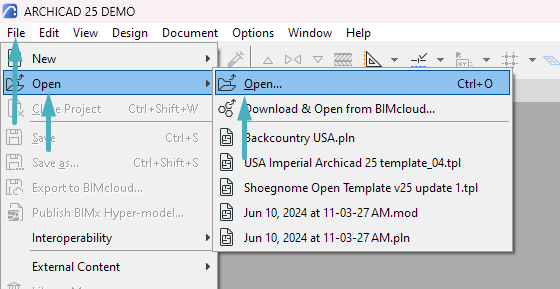
- Open Twindo .pln file.
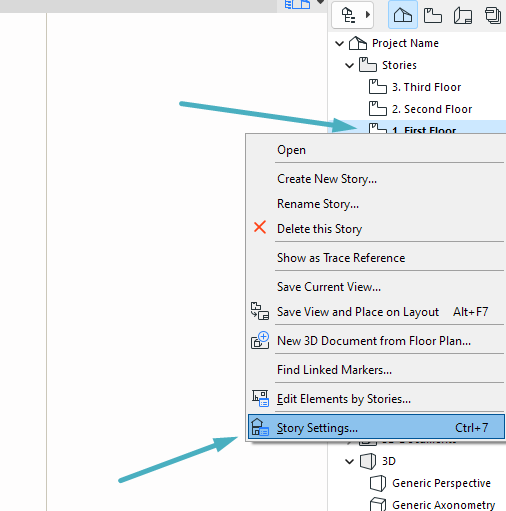
- Navigate to Stories and right-click (RMB) on any floor to access Story Settings.
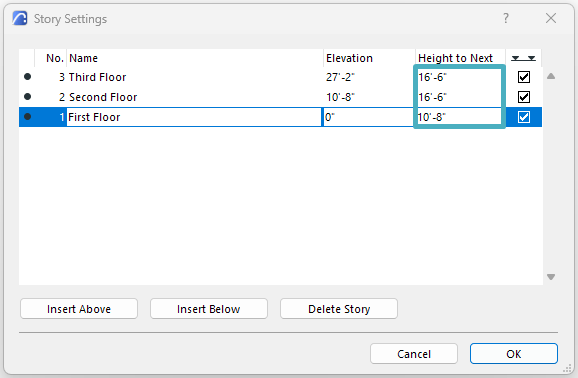
- Note down all height dimensions. Once done, close the .pln file.
- Open your custom template where you want to import the file.
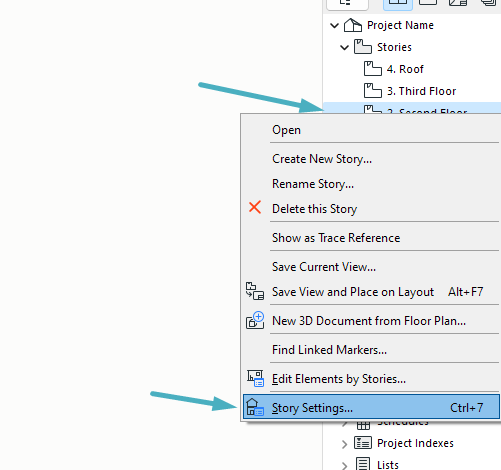
- Navigate to Stories and right-click (RMB) on any floor to access Story Settings.
- Edit all heights in your template to match the dimensions noted from the Twindo .pln file.
- Delete any extra stories or add more to match the Twindo .pln file story number.
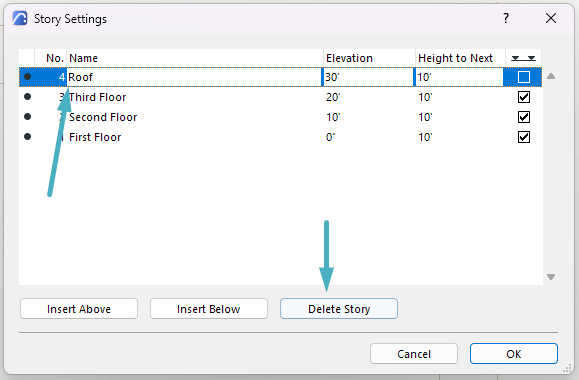
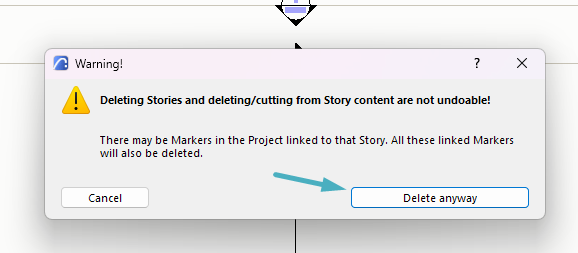
- Accept any warnings that may appear.
STEP 2: Import into an existing project
- Go to File → External Content → Place Hotlink.
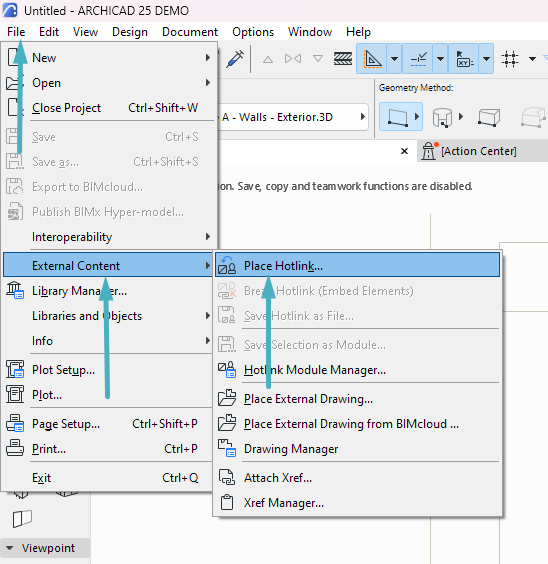
- Select Module.
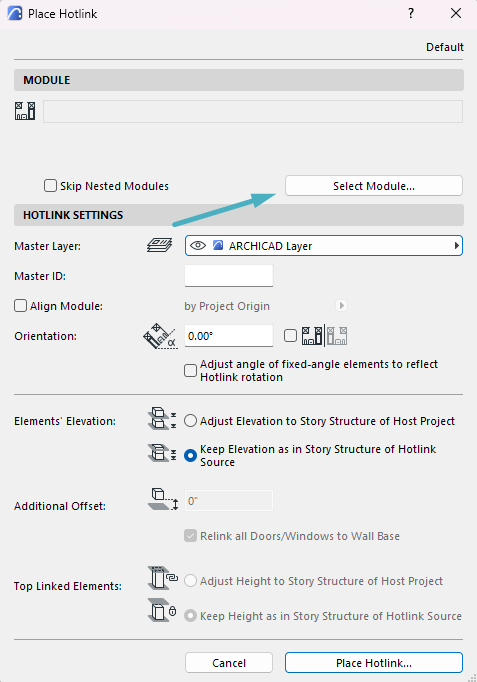
- Press New Module → from File
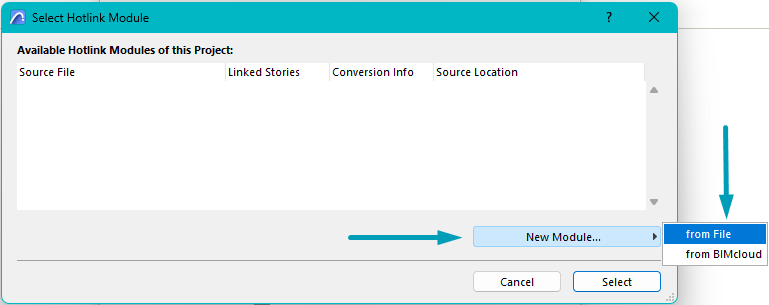
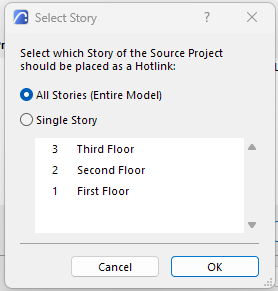
- Select All Stories.
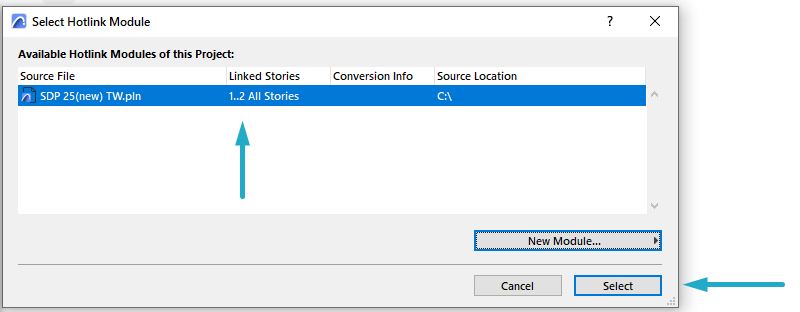
- Choose the desired file and press Select.
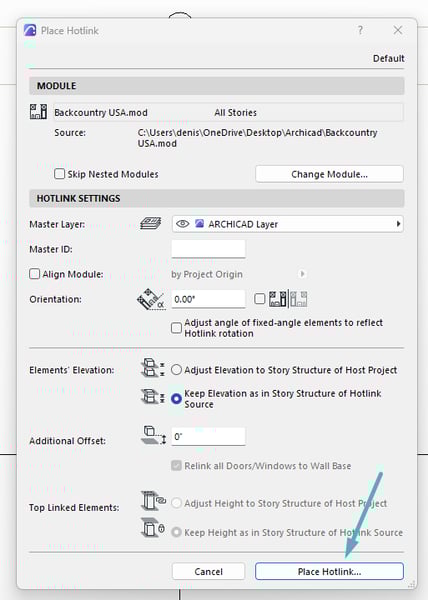
- Ensure the Master Layer is set to ARCHICAD Layer.
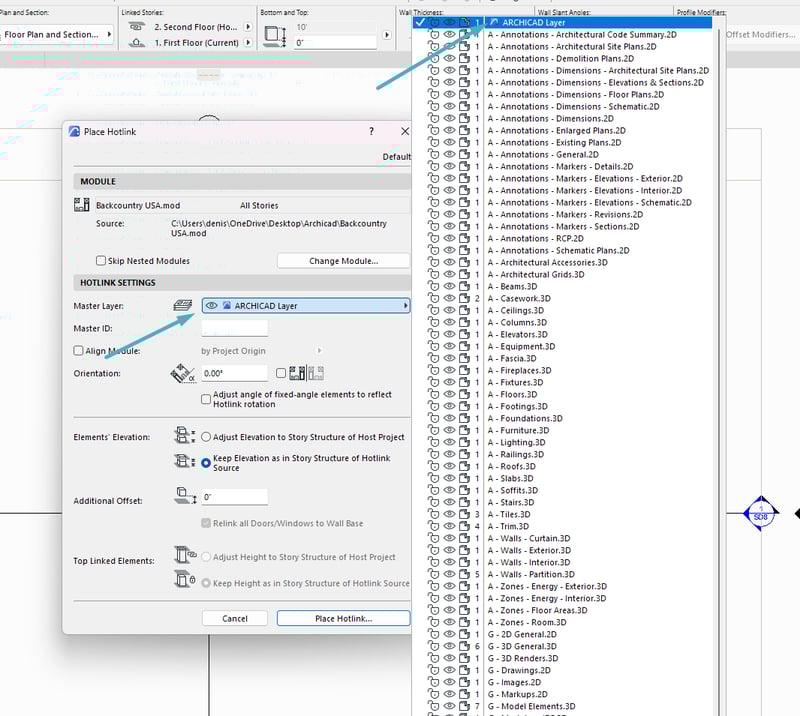
- If you are importing the file into a template that already has a preferred story setup, please make sure that the “Keep Elevation as in Story Structure of Hotlink Source” option is selected.
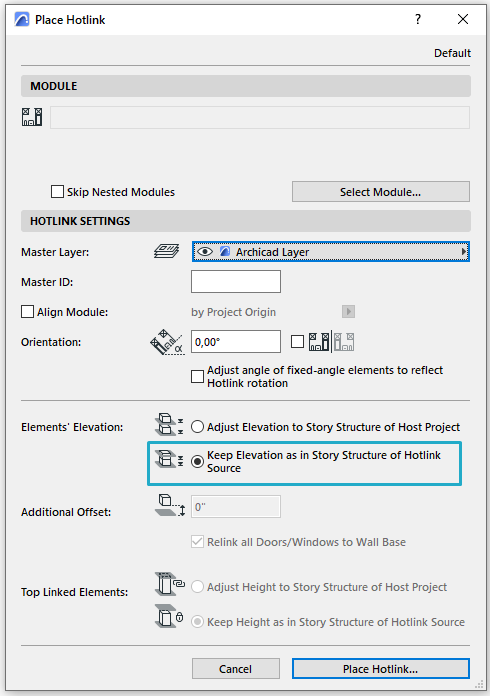
- Press Place Hotlink.
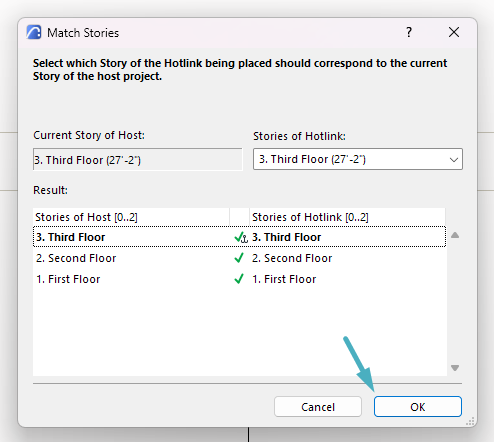
- Confirm by pressing OK.
Now you have successfully imported the Twindo file into your template.
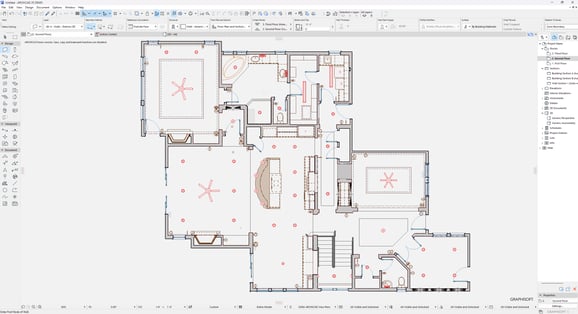
Please note that the model in your template is placed as a Hotlink, which means it cannot be modified directly in this file.
- Verify each floor to ensure everything is imported correctly.
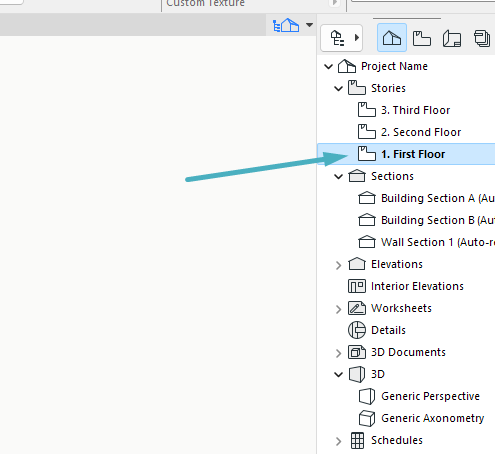
- Now you have successfully imported the Twindo file into your template.
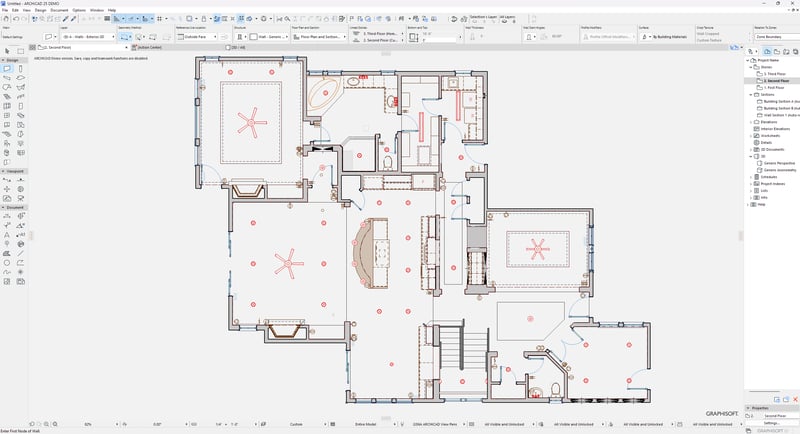
Please note that the model in your template is placed as a Hotlink, which means it cannot be modified directly in this file.
- Now you have successfully imported the Twindo file into your template.
If you need to make changes, you have two options:
-
Make the changes in the Twindo .pln file, and then update the Hotlink in your file.
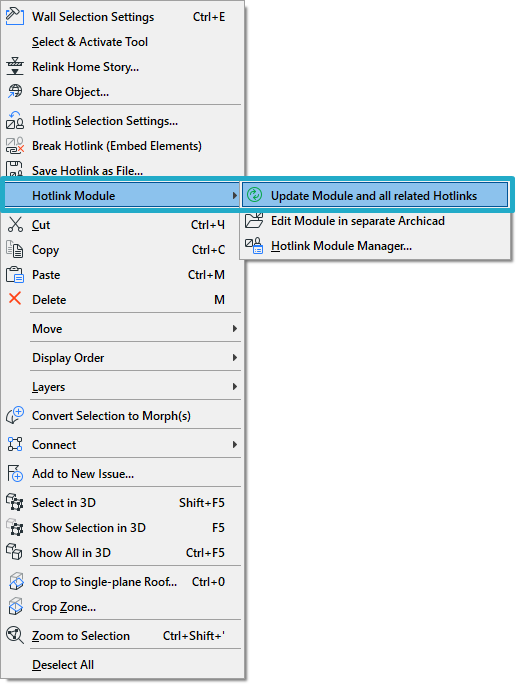
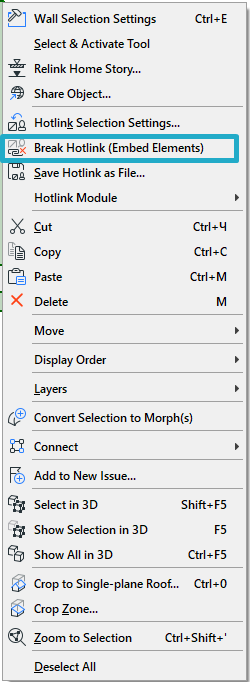
- Break the Hotlink and continue working with the model directly. To do this, right-click (RMB) on the model and select Break Hotlink. After breaking the Hotlink, the entire model will remain grouped. Ungroup it if needed before making further changes.
If your file appears empty, try the following steps:
-
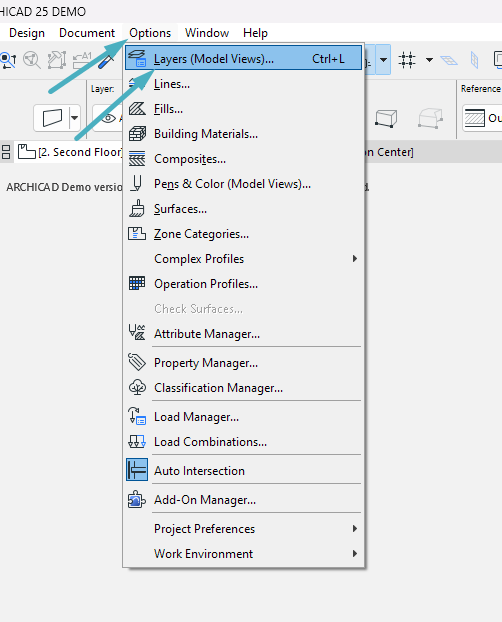
Go to Options → Layers.
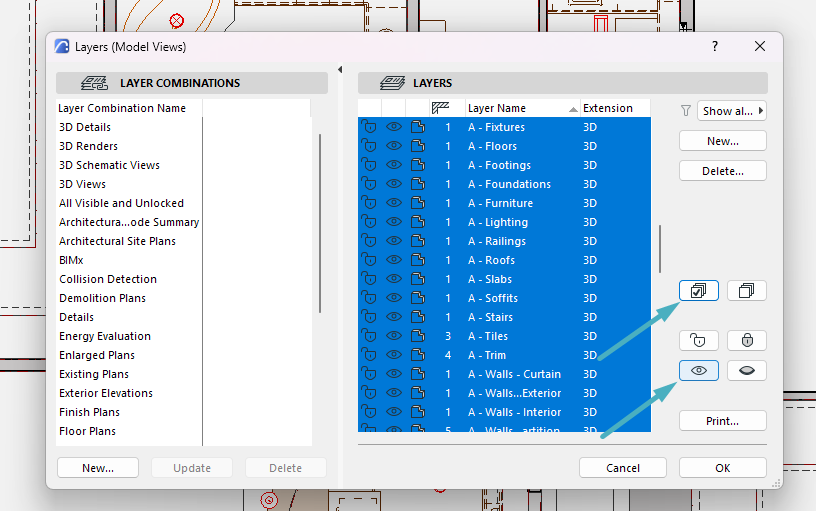
- Press Select All and Show icons, then press OK.
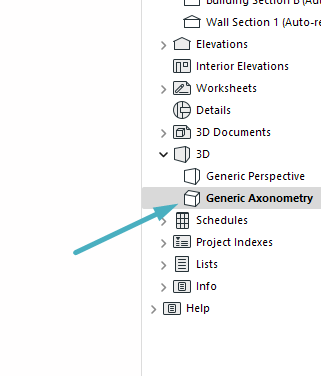
- Go to Generic Axonometry.
- Right-click (RMB) on any object in the 3D model and press Select on Floor Plan.
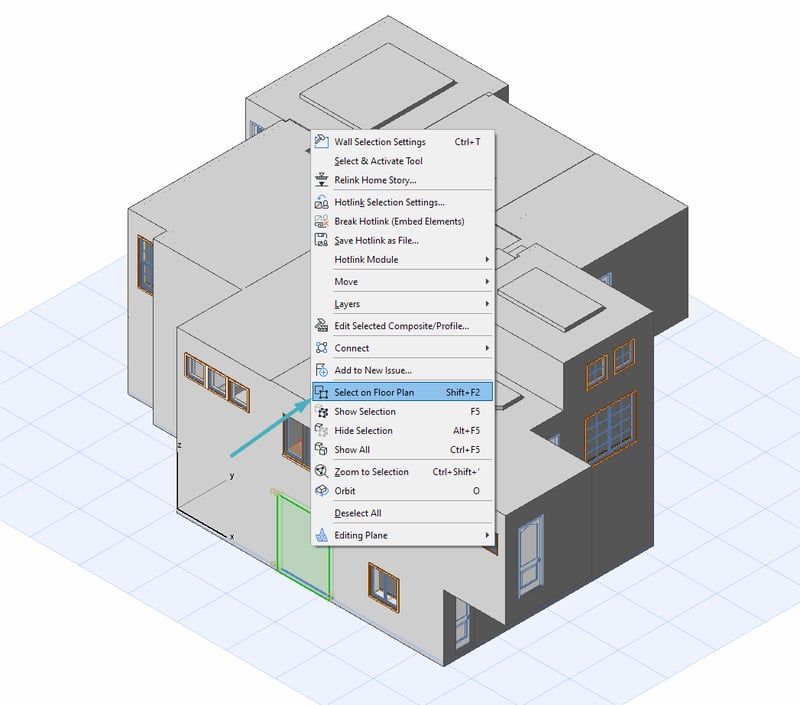
- Now, the plan should be visible on the screen.
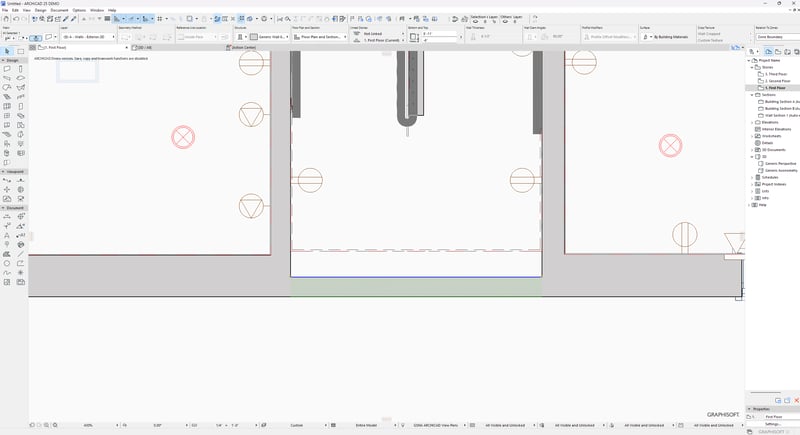
- If the 3D Generic Perspective is still empty, press the visibility button.
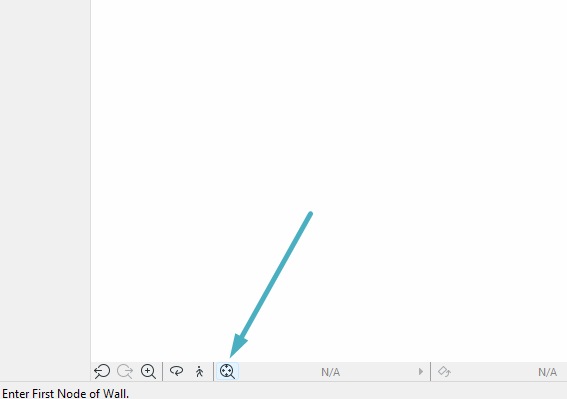
Now, everything should be visible.
If you want to add the Twindo model to your configured project with the story heights already set, open your custom template where you want to import the file.
- Place the Hotlink:
- Go to File → External Content → Place Hotlink.
- Select Module.
- Press New Module → from File
- Select All Stories.
- Choose the desired file and press Select.
- Ensure the Master Layer is set to ARCHICAD Layer.
- Please make sure that the “Keep Elevation as in Story Structure of Hotlink Source” option is selected.
- Press Place Hotlink.
- Confirm by pressing OK.
- Go to File → External Content → Place Hotlink.
Now you have successfully imported the Twindo file into your template.
Please note that the model in your template is placed as a Hotlink.
To get it modified directly in this file, you need to follow either of the 2 approaches:
-
Make the changes in the Twindo .pln file, and then update the Hotlink in your file.
- Break the Hotlink and continue working with the model directly. To do this, right-click (RMB) on the model and select Break Hotlink. After breaking the Hotlink, the entire model will remain grouped. Ungroup it if needed before making further changes.
If your file appears empty, try the following steps:
-
Go to Options → Layers.
- Press Select All and Show icons, then press OK.
- Go to Generic Axonometry.
- Right-click (RMB) on any object in the 3D model and press Select on Floor Plan.
- Now, the plan should be visible on the screen.
- If the 3D Generic Perspective is still empty, press the visibility button.
Once done, everything should be visible.
Fix the “elements appear as dots” issue (Library Setup)
We use the standard Archicad 28 Library Packages, which are compatible with Archicad 28 and later versions.
When opening our projects in Archicad 28, you should not encounter any library-related issues. However, if some objects appear as dots instead of displaying correctly for any reason, please follow the instructions below.
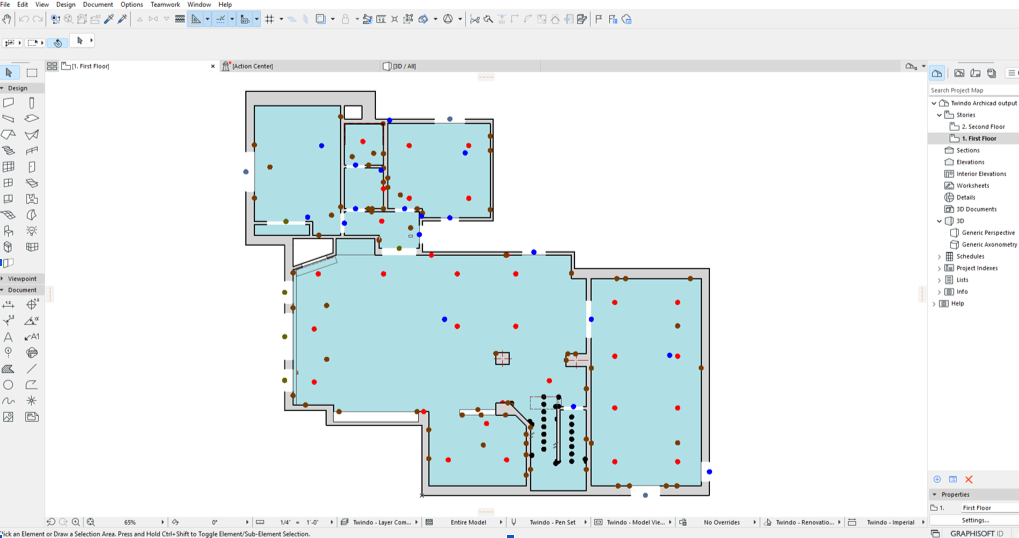
- Open the Twindo file.
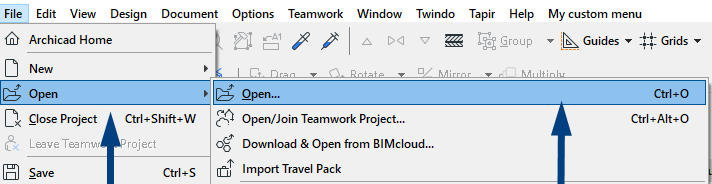
- Go to File → Library Manager.
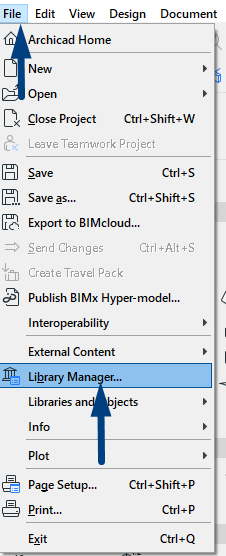
- Remove all currently loaded libraries and click Add.
Navigate to the Archicad folder on your computer and find the Archicad Library Packages folder.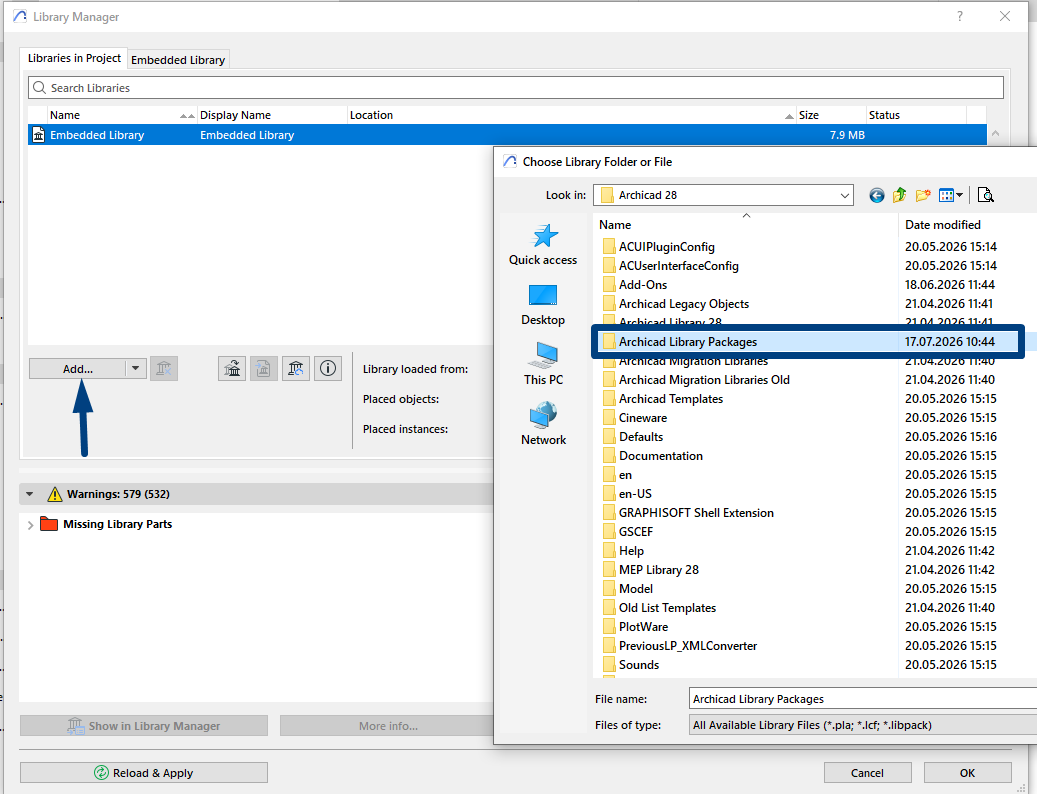
- Select all files in this folder and click Open.
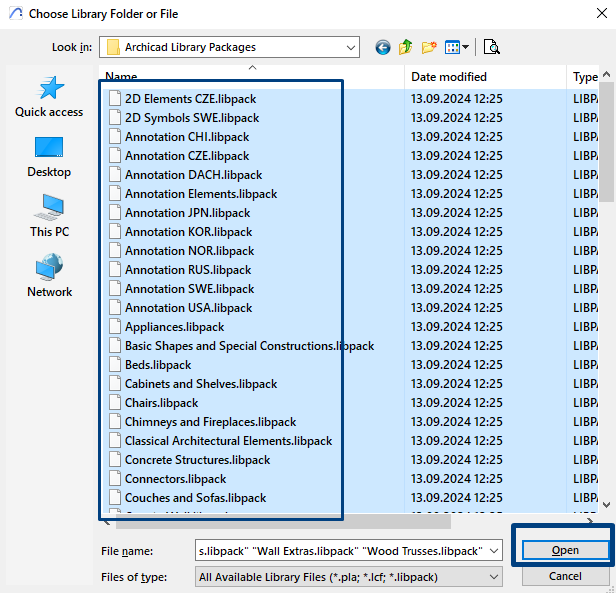
- Click Reload and Apply. After the libraries have been reloaded, the Library Manager should indicate that all required libraries have been successfully loaded.
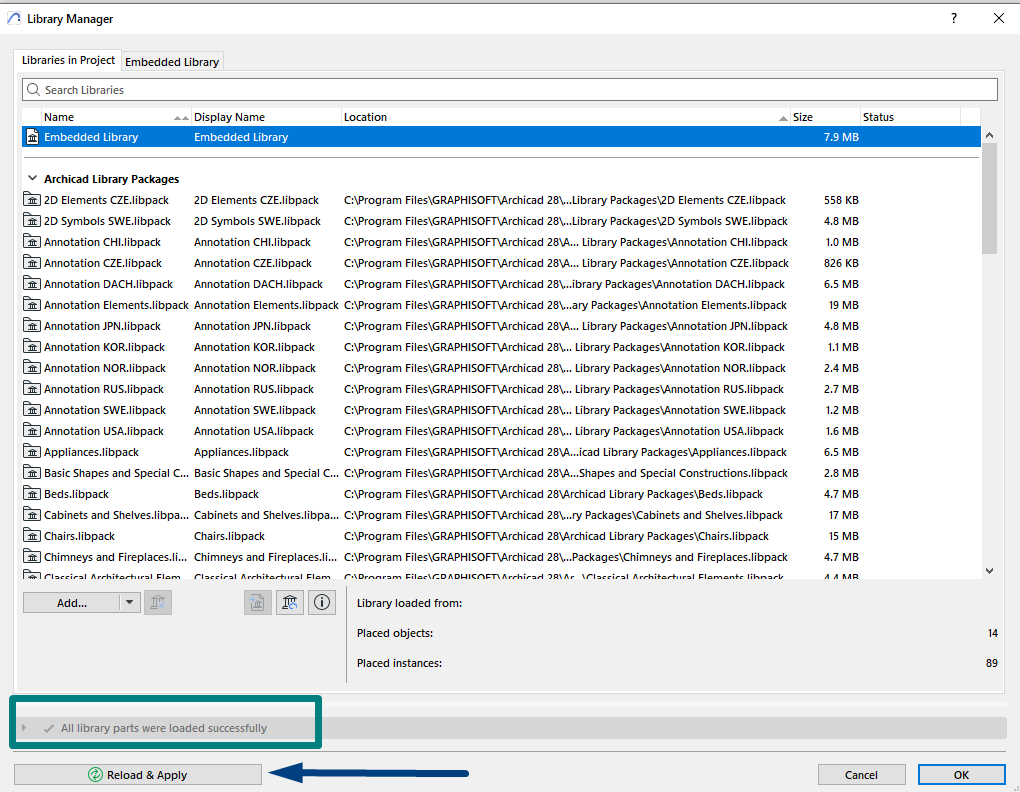
- Check the model and make sure that all elements are now displayed correctly.
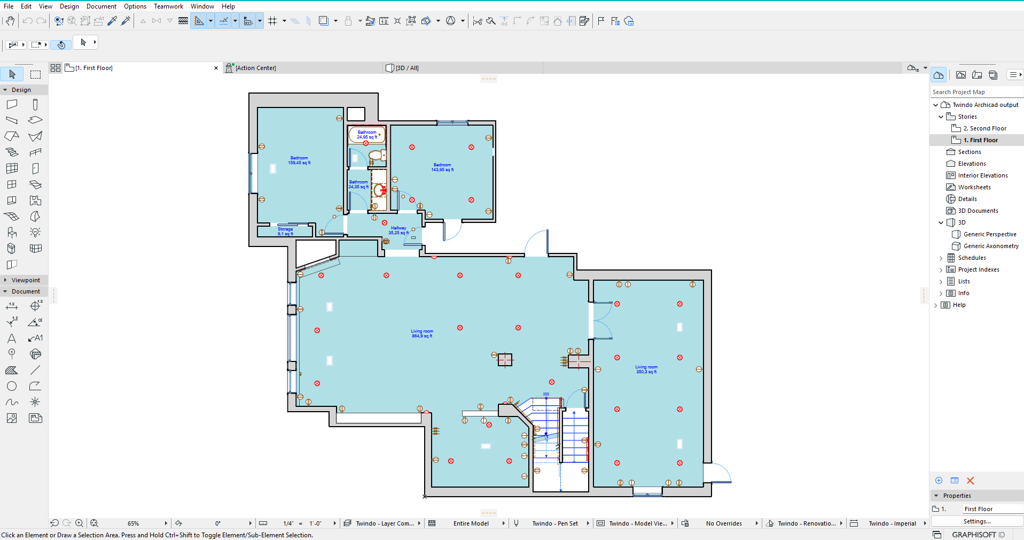
If some objects still appear as dots, or if you do not have the required Library Packages on your computer, try the following steps:
- Download the required libraries from. (USA or INT).
- Unzip the downloaded files on your computer.
- Add the libraries to the project via Library Manager, following the same steps described above.
Thank you and happy scanning!